How to Record Phone Calls on iPhone (2026 Complete Guide)
Record phone calls on iPhone using iOS 18.1 built-in recording (tap the waveform icon). Plus 5 third-party apps, state-by-state consent laws, and transcription.
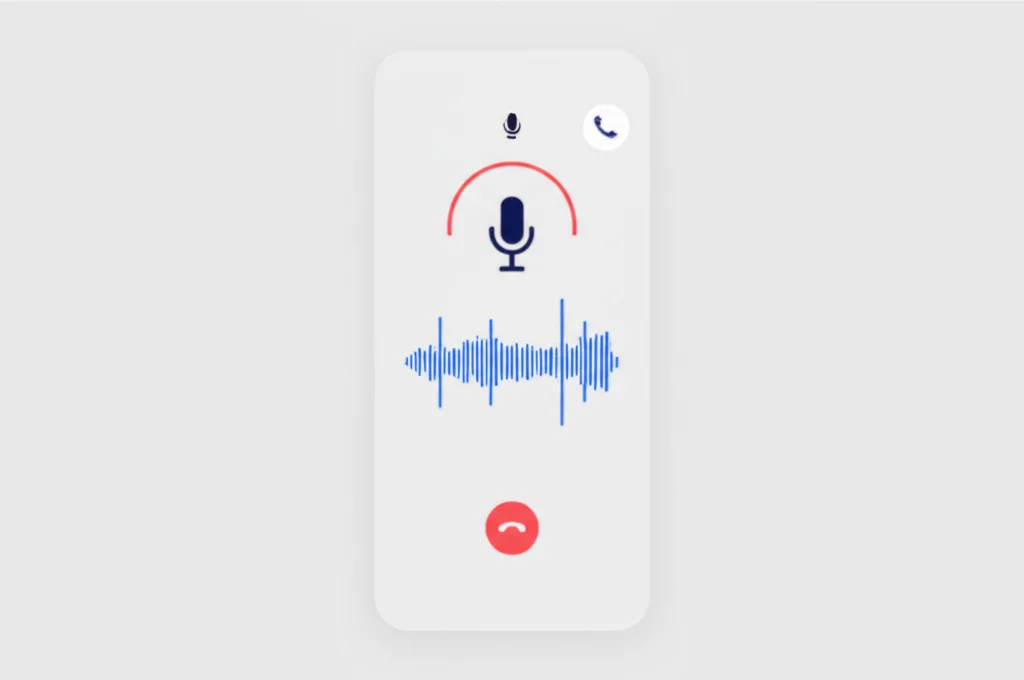
To record a phone call on your iPhone (iOS 18.1 or later), tap the waveform record button in the top-left corner of the call screen. After a short countdown, everyone on the call hears that it is being recorded, and the recording saves to the Notes app. Older iPhones need a third-party app such as TapeACall. Below: step-by-step, apps and the law.
iOS 18 Native Call Recording
Apple introduced native call recording with iOS 18.1 in October 2024. This feature is powered by Apple Intelligence and includes automatic transcription of your recorded calls.
Supported Devices:
- iPhone 16, iPhone 16 Plus, iPhone 16 Pro, iPhone 16 Pro Max
- iPhone 15 Pro, iPhone 15 Pro Max
- iPhone XS series and newer (with iOS 18.1+)
Note: The native call recording feature is not yet available in the European Union due to regional privacy regulations. EU users should use third-party apps instead.
How to Record a Phone Call on iPhone
Recording a call with iOS 18.1 or later is straightforward. Here's how to do it:
Step-by-Step Instructions:
- Start or receive a call — The recording feature works for both incoming and outgoing calls, including FaceTime audio calls.
- Tap the recording button — Look for the waveform icon in the upper left corner of the call screen. Tap it to start recording.
- Wait for the countdown — A brief countdown appears before recording begins. You can cancel by tapping the X if you change your mind.
- Both parties are notified — An automated voice message informs all participants that the call is being recorded. This cannot be disabled.
- Stop recording — Tap the red recording button to stop, or simply end the call. The recording saves automatically.
Important: You cannot record calls secretly with iOS 18's native feature. Apple automatically notifies all participants to ensure legal compliance and transparency.
Where to Find Your Recordings
After you finish recording, your calls are automatically saved to the Notes app:
Call Recordings Folder
Open Notes and look for the "Call Recordings" folder. All your recorded calls appear here.
Audio + Transcription
Each recording includes the audio file plus an AI-generated text transcription.
AI Summary
On devices with Apple Intelligence, you'll also see a brief summary of the call's key points.
Share & Export
Tap the share button to send recordings via email, Messages, or save to Files/cloud storage.
5 Best Third-Party Call Recording Apps for iPhone
If your iPhone doesn't support iOS 18.1's native recording, you're in the EU, or you need more features like cloud storage and professional transcription, these apps are the best alternatives:
| App | Price | Free Tier | Transcription | Rating |
|---|---|---|---|---|
| TapeACall | $19.99/yr | 1 min trial | AI (included) | 4.3/5 |
| Rev Call Recorder | Free | Unlimited | $1.25/min (pro) | 4.1/5 |
| RecMyCalls | $9.99/yr | 3-day trial | AI (included) | 4.0/5 |
| Call Recorder iCall | $14.99/yr | 1 recording | AI (included) | 4.2/5 |
| Google Voice | Free | Unlimited | Auto (incoming only) | N/A |
1. TapeACall
The most popular call recording app for iPhone with 35,000+ reviews. Uses three-way calling to record conversations through a dedicated recording line.
Pros:
- + Unlimited recordings with AI transcription
- + Cloud backup and sharing
- + Records both incoming and outgoing calls
Cons:
- - No free tier (only 1-minute trial)
- - Requires carrier conference calling support
- - Brief "merging" notification to other party
Price: $19.99/year | Rating: 4.3/5 (35K+ reviews)
2. Rev Call Recorder
A completely free call recording app with no time limits. Created by Rev.com, it integrates with their professional human transcription services for accuracy-critical recordings.
Pros:
- + 100% free with no time limits
- + Professional human transcription available
- + Simple, clean interface
Cons:
- - US-only (doesn't work internationally)
- - Pro transcription costs $1.25/min
- - No built-in AI transcription
Price: Free (transcription: $1.25/min) | Rating: 4.1/5
3. RecMyCalls
Budget-friendly recording app with AI-powered transcription and call summaries. Good option for users who want TapeACall features at half the price.
Pros:
- + Cheapest paid option ($9.99/year)
- + AI transcription included
- + Call summaries and keyword search
Cons:
- - Smaller user base, fewer reviews
- - 3-day free trial only
- - Occasional audio quality issues reported
Price: $9.99/year | Rating: 4.0/5
4. Call Recorder iCall
Mid-range option with a polished interface and reliable recording quality. Popular in business use cases for its organization features.
Price: $14.99/year | Rating: 4.2/5
5. Google Voice (Free — Incoming Calls Only)
If you have a Google Voice number, you can record incoming calls for free by pressing 4 during the call. The recording is saved to your Google Voice inbox. Note: this only works for incoming calls — you cannot record outgoing calls with Google Voice.
Pros:
- + Completely free
- + Automatic voicemail transcription
- + No additional app needed
Cons:
- - Incoming calls ONLY (not outgoing)
- - Announces "recording" to all parties
- - Requires Google Voice number setup
How third-party apps work: These apps use your carrier's conference call (3-way calling) feature to merge a recording line into your call. When you tap "record," the app calls a recording server and merges it into your active call. The other party may hear a brief notification that someone has joined the call.
Alternative Methods to Record Calls Without an App
Don't want to install an app? Here are three workarounds that let you record iPhone calls without any third-party software:
1. Speaker Phone + External Recorder
Put the call on speaker and use another device (laptop, iPad, or a digital recorder) to capture the audio. This is the simplest method and works on any iPhone model.
Tip: Use Voice Memos on a Mac or iPad to record. Place the recording device close to the iPhone speaker for best quality.
2. Google Voice (Press 4 to Record)
If you use Google Voice as your phone service, you can record any incoming call by pressing 4 on your keypad. A voice notification tells both parties the call is being recorded. The recording saves to your Google Voice inbox.
Setup: Open Google Voice > Settings > Calls > Enable "Incoming call options."
3. Voicemail Workaround
During a call, start a 3-way call to your own voicemail. When your voicemail picks up, merge the calls. The conversation is now being "recorded" by your voicemail system. This works on any iPhone but quality varies by carrier, and most voicemail systems cut off after 3-5 minutes.
Limitation: Not all carriers support this, and voicemail storage limits apply.
Legal Considerations by State
Before recording any call, you need to understand the consent laws in your state and the state of the person you're calling:
One-Party Consent States (38)
You can record if you're a participant in the call. No need to inform the other person.
Includes: New York, Texas, Florida*, Georgia, Ohio, Virginia, and 32 others
Two-Party Consent States (11)
All parties must consent to being recorded. Recording without consent can be a felony.
California, Delaware, Florida*, Illinois, Maryland, Massachusetts, Montana, Nevada, New Hampshire, Pennsylvania, Washington
| State | Consent Required | Penalty for Violation |
|---|---|---|
| California | All parties | Felony, up to $2,500 fine + civil damages |
| Delaware | All parties | Class A misdemeanor, up to 1 year |
| Florida | All parties | 3rd-degree felony, up to 5 years |
| Illinois | All parties | Class 4 felony |
| Maryland | All parties | Felony, up to 5 years |
| Massachusetts | All parties | Felony, up to 5 years |
| Montana | All parties | Up to $500 fine + 6 months |
| Nevada | All parties | Category D felony |
| New Hampshire | All parties | Class B felony |
| Pennsylvania | All parties | 3rd-degree felony, up to 7 years |
| Washington | All parties | Gross misdemeanor + civil liability |
All other 39 states + D.C. are one-party consent — you can legally record if you are a participant in the call, without telling the other person. However, iOS 18's native recording always notifies all parties regardless of state law.
Cross-State Calls: When calling someone in a different state, the stricter consent law applies. When in doubt, always inform all parties that you're recording.
Recording Quality Tips
Getting clear audio on your recordings makes a big difference for transcription accuracy and usability. Follow these tips:
Use a Quiet Room
Background noise is the #1 quality killer. Close windows, turn off TV/music, and avoid recording in public spaces like cafes or cars.
Use Wired Headphones
Wired EarPods with a built-in mic produce clearer audio than Bluetooth or speaker phone. The mic stays at a consistent distance from your mouth.
Strong Signal or WiFi
Poor cell signal causes audio dropouts and static. If possible, use WiFi calling or make the call from a location with strong reception.
Don't Talk Over Each Other
When both parties talk simultaneously, the recording becomes unclear and transcription fails. Pause before responding to avoid overlap.
How to Transcribe Recorded Calls
Once you have a recording, you'll likely want a text transcript for reference, sharing, or legal purposes. Here are your options:
iOS 18 Built-In Transcription (Free)
If you used iOS 18's native recording, the transcription is generated automatically using Apple Intelligence. Open the recording in Notes to see the full transcript alongside the audio. Speaker labels are included.
Otter.ai (Free Tier Available)
Upload your recording to Otter.ai for AI-powered transcription with speaker identification. The free tier includes 300 minutes/month. Accuracy is typically 85-95% depending on audio quality.
Rev.com Human Transcription ($1.25/min)
For legal, medical, or accuracy-critical recordings, Rev offers professional human transcription with 99%+ accuracy. Turnaround is typically 12-24 hours.
Google Docs Voice Typing (Free)
Open Google Docs, go to Tools > Voice typing, play the recording on speaker, and let Google transcribe in real-time. Free but lower accuracy — best for quick, informal notes.
Business Call Recording
For businesses that need to record calls regularly, consider these best practices:
Start with a disclosure
Begin calls with "This call may be recorded for quality assurance purposes." This protects you legally in all states.
Use a business phone system
VoIP services like BubblyPhone, RingCentral, or Dialpad include built-in call recording with compliance features.
Store recordings securely
Keep recordings in encrypted cloud storage with access controls. Many industries (healthcare, finance) have specific retention requirements.
Document your policy
Create a written call recording policy that employees and customers can reference. Include what's recorded, how long it's kept, and who can access it.
Frequently Asked Questions
Can I record a phone call without the other person knowing?
With iOS 18's native feature, no—Apple automatically notifies all parties. With third-party apps, it's technically possible but may be illegal depending on your state. In two-party consent states, recording without consent can result in criminal charges.
Why doesn't my iPhone have the call recording button?
The native call recording feature requires iOS 18.1 or later and is not available in the European Union. Make sure your iPhone is updated to the latest iOS version. If you're in the EU, you'll need to use a third-party app instead.
Can I record FaceTime calls?
Yes, iOS 18.1's native recording works for FaceTime audio calls (one-on-one only). For FaceTime video calls or group calls, you'll need to use screen recording instead, though this may not capture the other person's audio depending on your settings.
How long can I record a phone call?
With iOS 18's native feature, there's no specific time limit—recordings continue until you stop them or end the call. Third-party apps like Rev Call Recorder also offer unlimited recording length. Storage space is the main limitation.
Are call recordings admissible in court?
Recordings made legally (with proper consent) can generally be used as evidence. However, illegally recorded calls may be inadmissible and could result in legal consequences for the person who recorded them. Consult an attorney for specific legal advice.
Can I turn off the notification that tells the other person I'm recording?
No, the automatic notification in iOS 18 cannot be disabled. Apple designed this feature to ensure compliance with consent laws and protect user privacy. This notification protects you legally in two-party consent states.
Related Guides
3-Way Call on iPhone
Make conference calls on your iPhone
3-Way Call on Android
Conference calling on Android devices
Call Forwarding on iPhone
Set up call forwarding on iOS
Auto Reply Text iPhone
Automatic text responses on iPhone
WiFi Calling Apps
Best apps for calling over WiFi
Hide Number When Calling
Block your caller ID on any phone
Start Recording Your Calls
With iOS 18.1, recording phone calls on iPhone is easier than ever. Just tap the recording button during a call, and your conversation is automatically saved with a transcription. For older devices or users in the EU, apps like TapeACall and Rev Call Recorder provide reliable alternatives.
For business call recording with advanced features, try BubblyPhone—it includes call recording, transcription, and works seamlessly across all your devices.