How to Dial a Phone Extension (2026 Complete Guide)
Learn how to dial phone extensions on iPhone, Android, and landlines. Includes how to use pause and wait, save extensions to contacts, and set up business extensions.
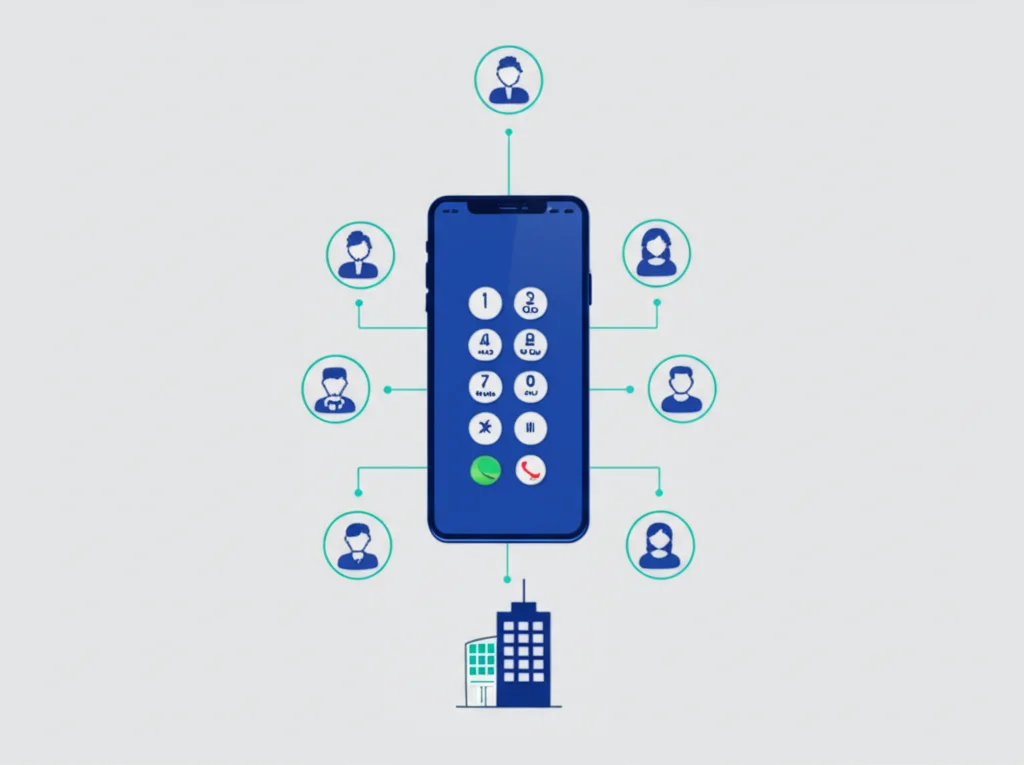
To dial a phone extension, call the main number, wait for the automated greeting, then type the extension digits on your keypad. To dial it automatically, save the number with a comma (2-second pause) or semicolon (wait) before the extension, e.g. 555-123-4567,204.
What is a Phone Extension?
A phone extension is a short internal number assigned to a specific person, department, or device within a business phone system (PBX). Instead of having a separate phone line for every employee, companies use a main number with extensions.
Example:
A company's main number is 1-800-555-1234. To reach John in Sales, you call the main number and dial extension 205. The full format would be:1-800-555-1234 ext. 205
How It Works
When you call a main number and enter an extension, the PBX (Private Branch Exchange) system routes your call to the correct internal phone or device.
Extension Formats
Extensions are typically 3-5 digits. Common formats include: ext. 205, x205, #205, or simply 205.
How to Dial an Extension Manually
The traditional way to reach an extension is to call the main number first, then enter the extension when prompted by the automated system.
Step-by-Step:
- Call the main phone number
- Listen to the automated greeting (IVR/auto-attendant)
- Wait for the prompt: "If you know your party's extension, dial it now"
- Enter the extension number on your keypad
- Your call will be connected to the right person or department
Tip: If you're frequently calling the same extension, you can save time by using the automatic dialing features on iPhone and Android (described below).
How to Dial an Extension on iPhone
iPhone lets you automatically dial extensions using two special characters: comma (,)for a pause and semicolon (;) for a wait.
Method 1: Using Pause (Comma)
A pause automatically dials the extension after a 2-second delay. Best when the system accepts the extension immediately.
- Open the Phone app and go to the Keypad
- Dial the main phone number
- Press and hold the * (asterisk) key until a comma appears
- Enter the extension number after the comma
- Tap the green call button
Example: 1-800-555-1234,205
Method 2: Using Wait (Semicolon)
A wait pauses and shows a "Dial" button. Tap it when you're ready to send the extension. Best for systems with variable wait times.
- Open the Phone app and go to the Keypad
- Dial the main phone number
- Press and hold the # (hash) key until a semicolon appears
- Enter the extension number after the semicolon
- Tap the green call button
- When the call connects, tap "Dial" to send the extension
Example: 1-800-555-1234;205
How to Dial an Extension on Android
Android phones also support pause and wait features, though the method varies slightly by manufacturer.
Method 1: Using Pause (Comma)
- Open the Phone app and go to the dialer
- Enter the main phone number
- Tap the three-dot menu (⋮) or press and hold *
- Select "Add 2-sec pause" — a comma appears
- Enter the extension number
- Tap the call button
Samsung/Pixel tip: On most Android phones, you can also press and hold the * key to add a comma (pause).
Method 2: Using Wait (Semicolon)
- Open the Phone app and go to the dialer
- Enter the main phone number
- Tap the three-dot menu (⋮)
- Select "Add wait" — a semicolon appears
- Enter the extension number
- Tap the call button
- When connected, tap "Send" to dial the extension
Note: The exact steps may vary slightly depending on your Android phone (Samsung, Google Pixel, OnePlus, etc.) and Android version. Look for options in the dialer's menu or try pressing and holding *.
Save Extensions to Contacts
For numbers you call frequently, save the extension directly in the contact. This way, you can call with one tap and the extension dials automatically.
iPhone
- Open Contacts and select the contact
- Tap Edit
- In the phone field, enter the main number
- Tap +*# to access special characters
- Add a pause (,) or wait (;)
- Enter the extension number
- Tap Done
Android
- Open Contacts and select the contact
- Tap the pencil icon to edit
- In the phone field, enter the main number
- Long-press * for pause (,) or use menu for wait (;)
- Enter the extension number
- Tap the checkmark to save
Format example: 18005551234,205 or 18005551234;205
Pause vs. Wait: When to Use Each
| Feature | Pause (,) | Wait (;) |
|---|---|---|
| Symbol | Comma (,) | Semicolon (;) |
| Behavior | Waits ~2 seconds, then auto-dials | Waits for you to tap "Dial/Send" |
| Best For | Systems that accept extensions immediately | Systems with variable wait times or menus |
| User Action | Fully automatic | Manual tap required |
Pro tip: If the auto-attendant has a long greeting, you can use multiple pauses: 1-800-555-1234,,,205 (each comma adds ~2 seconds).
Setting Up Extensions for Your Business
If you're a business owner looking to set up extensions for your team, here's what you need to know:
Choose a Phone System
Modern businesses use cloud-based PBX or VoIP systems. These are more affordable and flexible than traditional on-premise PBX hardware.
Assign Extensions
Give each employee or department a unique 3-4 digit extension. Common schemes: 100-199 for executives, 200-299 for sales, 300-399 for support, etc.
Set Up Auto-Attendant
Configure an automated greeting that tells callers how to reach specific departments or individuals by extension.
Consider Direct Inward Dialing (DID)
DID numbers allow external callers to reach an extension directly without going through the main number—great for sales teams and executives.
Need a business phone system with extensions? BubblyPhone offers cloud-based calling with extensions, auto-attendant, call routing, and more—all accessible from your browser or mobile device.
Frequently Asked Questions
What does "ext." mean in a phone number?
"Ext." stands for extension. It indicates an internal number you dial after reaching the company's main phone line. For example, 555-1234 ext. 205 means you call 555-1234, then dial 205 to reach a specific person.
How many digits are in a phone extension?
Phone extensions are typically 3 to 5 digits. Small businesses might use 2-3 digit extensions, while larger organizations often use 4-5 digits to accommodate more employees.
Can I dial an extension from a cell phone?
Yes! Both iPhone and Android support automatic extension dialing using pause (comma) or wait (semicolon) characters. You can enter these directly when dialing or save them in your contacts.
Why isn't the extension working when I dial it?
Common issues: You're dialing too early (before the system is ready), the pause isn't long enough (add more commas), or the phone system requires you to press # or * before the extension. Try using "wait" instead of "pause" for more control.
How do I add a pause on my phone keypad?
On iPhone, press and hold the * key. On Android, press and hold * or tap the three-dot menu and select "Add 2-sec pause." Both methods insert a comma (,) which causes a 2-second pause.
What's the difference between an extension and a direct line?
An extension requires calling a main number first, then dialing the extension. A direct line (DID - Direct Inward Dialing) is a unique phone number that rings a specific person directly without going through the main switchboard.
Related Guides
Call Forwarding Codes
Forward calls to your extension or mobile
Professional Voicemail Greetings
Record a professional greeting for your extension
Virtual Phone Numbers
Get a dedicated business number
Second Phone Number Apps
Add a business line to your personal phone
3-Way Call on iPhone
Conference calls on your iPhone
WiFi Calling Apps
Make calls over WiFi when cellular is weak
Dial Extensions Like a Pro
Whether you're calling a support line, reaching a colleague, or setting up extensions for your business, understanding how to dial extensions saves time and frustration. Use pauses for quick auto-attendants and waits for systems with variable timing.
Need a modern business phone system with extensions? BubblyPhone offers cloud-based calling with unlimited extensions, auto-attendant, and advanced call routing—all from your browser.