How to Call Landline from Computer

Table of Contents
You need to call a family member's landline abroad, reach a client after business hours, or return a call from a laptop with no desk phone nearby. The practical answer is simple: use a browser-based VoIP dialer, allow microphone access, enter the complete international number, and call the ordinary telephone network. The person answering doesn't need an app, account, or internet connection.
Calling a Landline From a Computer Without Apps
Calling a landline from a computer works because Voice over Internet Protocol, or VoIP, converts your speech into digital data packets and sends them over the internet. A browser or application captures your microphone audio, a calling service routes the session through enterprise-grade global carriers, and the call terminates on the recipient's public telephone network. Your relative can answer on a vintage fixed phone, and your client can pick up a normal office line.
That distinction matters. Internet calling between two app users requires both people to use compatible software. Computer-to-landline calling does not. The recipient only needs a working landline or mobile number, while you need a computer, a microphone or headset, a supported browser, and a calling service with access to the destination.


What happens behind the screen
The receiving phone doesn't need special software because the final connection is delivered through the conventional telephone network. That interoperability is the reason browser calling remains useful even as many households move away from traditional copper lines. The World Bank and International Telecommunication Union classify fixed lines broadly, including analogue lines, VoIP subscriptions, fixed wireless local-loop connections, ISDN voice-channel equivalents, public payphones, and satellite subscriptions serving fixed locations. Their indicator covers 230 economies from 2000 through 2024 in the World Bank's fixed-telephone data.
The underlying technology has been developing for decades. A California Public Utilities Commission historical report traces internet telephony to 1995, when Israeli computer enthusiasts used software to communicate by computer, and identifies that year as the first commercial sale of internet-phone software. Advertising-supported VoIP services appeared in 1998, when approximately 1% of phone calls used VoIP, rising to about 3% by 2000. The report later projected that VoIP could carry 24% to 40% of international traffic by late 2006 in its historical account of internet telephony.
For a current browser workflow, the useful takeaway is narrower: you can make the call without buying a desk phone or asking the other person to install anything. A guide to calling a phone from a computer can help if you also need options for mobile destinations or repeat business calling.
Placing Your First Browser-Based Landline Call
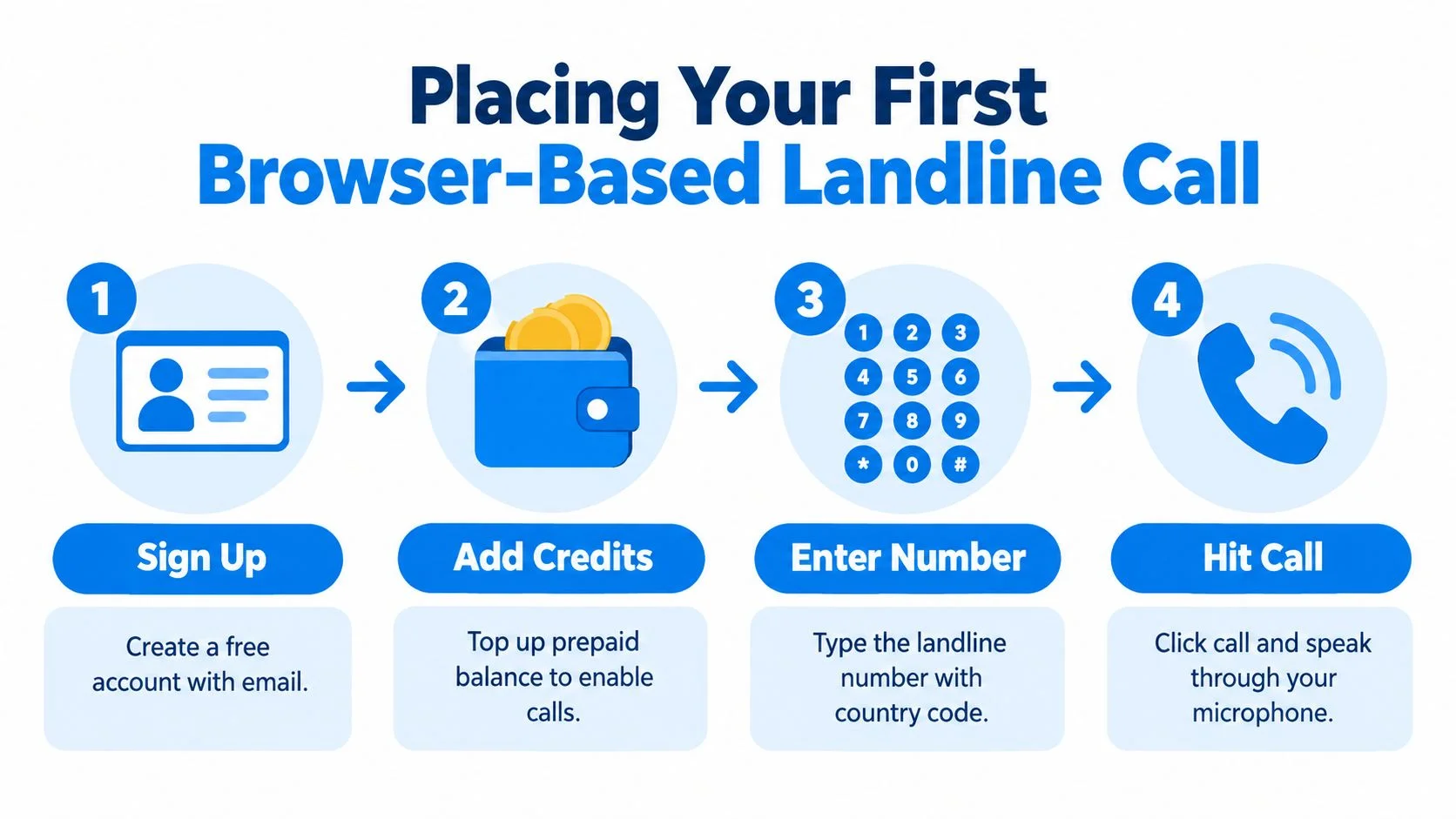
To make your first browser-based landline call, create an account, add prepaid credit, open the web dialer in a supported browser, enter the full international number, and click the call button. The process is short, but each step prevents a different kind of failure.
Follow the workable path
- Create the account. Register with the calling service using your email address. You'll need an account to manage credit, call history, and any optional phone-number features.
- Add prepaid credit. Top up before dialing so the service can authorize the call. BubblyPhone credits start at $5, never expire, and calls are billed per minute, rounded up to the whole minute. There's no required subscription for outbound calling. The optional dedicated-number plan is the recurring product, and it's designed for people who need an inbound number.
- Use a clean browser session. Open the dialer in Chrome, Safari, Firefox, or Edge, preferably with unnecessary extensions disabled. Browser calling uses secure web audio, so avoid an outdated browser or a page that isn't served over HTTPS.
- Enter the destination. Select the country, then type the landline number in its complete international form. Don't paste a local format unless the dialer explicitly converts it.
- Check the visible estimate. Review the destination and current rate before you place the call. Rates can vary by country and number type, so use the service's live international calling rates rather than relying on an old example.
- Allow the microphone and call. Approve the browser permission prompt, select your headset or built-in microphone, and click the call control. Speak normally once the recipient answers.

The call history gives you a practical record of the attempt and its outcome. Billing is based on whole-minute increments, so a call lasting part of a minute is still charged as a complete minute. If you stop using the service, there's no ordinary calling subscription to cancel. A dedicated number is separate, optional, and useful when you want to receive calls, voicemail, or SMS on that number. SMS on dedicated numbers is receive-only.
Entering Destination Numbers Correctly
Most failed international calls aren't caused by the landline. They fail because the caller entered a local number into an international dialer. Use the E.164 format, which starts with the country code and contains the destination's complete international number.
Remove the local prefix
A number written for domestic use may begin with a trunk prefix, often a leading zero. That prefix may need to be removed when you add the country code. For example, don't assume that a domestic number beginning with 0 should become a country code followed by that same zero. Check the destination's numbering rules or use a country-code lookup tool instead of guessing.
The international number has a maximum of 15 digits, excluding the international access prefix, under ITU-T E.164 numbering guidance. The plus sign is a convenient way to write the format, followed by the country code, national destination information, and subscriber number.
Practical rule: If the dialer asks for a country separately, select the country once and enter the remaining national number exactly as the service expects. Don't add the country code twice.
Verify before spending credit
Before pressing call, compare the number against the original contact, confirm that no spaces or punctuation have been misread, and check whether the destination is a fixed line or mobile. Some services support both, but availability and pricing can differ by number type. The 15-digit ceiling is a numbering-plan limit, not a guarantee that every number within it is reachable from every service.
A built-in country-code lookup or cost calculator is useful when you're calling a new destination. The international dialing guide can help you check the country code and international structure before you use prepaid credit. Correct formatting won't solve an inactive number, but it removes one of the most avoidable causes of immediate rejection.
Setting Up Audio and Fixing Common Call Problems
Browser calls usually fail because of permissions, device selection, or network quality, not because the recipient uses a landline. Test the microphone and speakers before an important call, then troubleshoot the failure based on what you can hear.
Clear the browser checks first
Browser microphone capture uses getUserMedia(). It requires a secure HTTPS context, explicit user permission, and the correct microphone policy when the dialer is embedded in another page. If navigator.mediaDevices is undefined, check HTTPS before changing anything else. If you previously blocked access, reset the site's microphone permission and reload the page.
Use this quick sequence:
- Confirm the input device. Select the headset microphone or built-in microphone you intend to use.
- Confirm the output device. Make sure the call is routed to the headset or speakers, not a disconnected monitor.
- Check physical mute controls. A headset switch, keyboard key, or operating-system setting can silence you even when the browser shows permission granted.
- Run a short test. Make a 10 to 15-second recording or loopback, then place a brief call to a known reachable number.
- Check the browser tab. Make sure the page and operating system aren't muted.
For a broader explanation of browser audio, network behavior, and small-business calling architecture, the Networking2000 VoIP setup guide provides useful technical context. For a quick browser-side check, use the BubblyPhone microphone test before dialing.
Match the symptom to the fix
If the recipient hears you but you can't hear them, verify the selected output device first. Then check the headset mute switch, firewall, VPN, and corporate network policy. One-way audio often points to a blocked media path rather than a bad destination number.
Choppy speech, delayed audio, and dropped calls usually indicate unstable broadband, congestion, packet loss, or jitter. Test latency, packet loss, and jitter before deploying browser calling in a support workflow. If the connection remains poor, switch to a wired connection or a different network instead of repeatedly redialing.
Network reality: A browser dialer still depends on the internet connection carrying your audio. A successful microphone test doesn't prove that an overloaded Wi-Fi network will sustain a clear international call.
Don't treat ordinary computer calling as your emergency fallback. Power loss, internet outages, and routing limitations can affect VoIP emergency access, so keep a locally appropriate mobile or fixed-line alternative available.
Caller-ID Trust, Emergency Limitations, and Safety
A call can connect successfully and still look suspicious to the person answering. Caller ID depends on the service, number ownership, destination rules, and local anti-spoofing controls, not on the browser or laptop placing the call.
Make the displayed identity predictable
Ask what number the recipient is likely to see before you call. An unfamiliar international number may trigger spam filters or go unanswered, while an unexpected local-looking number can also reduce trust if the recipient doesn't recognize it. For business calls, use an authorized and stable caller ID where the service and destination permit it, and tell the recipient in advance to expect an international call.
Cross-border numbering rules are tightening. UK regulators began blocking calls from abroad that falsely present a UK landline number in January 2025, with limited legitimate exceptions, as part of anti-spoofing measures outlined by Ofcom. A displayed number may not be returnable, either, so don't promise that the recipient can press redial.
Keep emergency calls separate
A dial pad doesn't prove that a browser service supports emergency calling. In the United States, the FCC says interconnected VoIP providers must support 911, collect a physical location, transmit the caller's callback number and registered location, and disclose limitations. Other services may not be covered by those same requirements.
The FCC warns that VoIP emergency calls may reach the wrong center, fail to transmit location, or fail during power or internet outages in its VoIP and 911 guidance. Travelers and remote workers face an additional risk because a registered address may not match their current location.
Use a conventional mobile or fixed phone for urgent help unless the calling service explicitly confirms emergency-call support for your location. Ordinary outbound calls to family, suppliers, or clients are a different use case and shouldn't be confused with regulated emergency access.
Next Steps for Reliable Computer Calling
Reliable computer calling comes down to four habits: use a supported HTTPS browser, enter the destination in international format, test audio before important calls, and set realistic expectations about caller ID and emergency access. Those checks matter more than buying extra hardware.
Choose the simplest setup that fits
For an occasional family call, a browser dialer and prepaid balance are usually enough. You don't need a desk phone, a second SIM, or a recipient who understands internet calling. For regular business use, keep a written record of approved destination formats, caller-ID expectations, and a backup calling method.
A dedicated number can make sense when people need to call you back or when a business wants a separate public identity. Remember that it's optional, while ordinary outbound usage is pay as you go. Dedicated-number SMS is for receiving messages, not sending them.
Teams comparing physical equipment and browser workflows may also find this overview of Indiana business VoIP phone options useful. The right choice depends on whether you need a shared office system, occasional international access, inbound reachability, or a developer integration.
Before your first important call, write the number in E.164 format, check the live destination rate, run a short microphone test, and tell the recipient when to expect you. If the call fails, diagnose the browser permission, number format, and network in that order rather than assuming the landline is unavailable.
BubblyPhone lets you call landlines and mobiles from any modern browser, with pay-as-you-go credits starting at $5 that never expire. The person you're calling needs no app or account, so enter the international number, test your microphone, and make your call through BubblyPhone.