How to Improve VoIP Call Quality in 2026

Table of Contents
- Capture a one-minute trace
- Read the numbers in context
- Fix the queue before you upgrade the plan
- Understand the limits of DSCP
- Codec choice matters but you usually don't choose it
- Browser and headset checks
- When the call connects but one side hears silence
- Match the symptom to the pattern
- Power saving can look like a network fault
- Make the confirmation call count
Buying a faster internet plan won't fix most bad VoIP calls. If you want to know how to improve VoIP call quality, start by measuring one-way delay, jitter, and packet loss on the failing call, then match the fix to the pattern you find.
A fast speed test can hide short bursts of missing packets, a congested upload queue, or a phone that's putting the browser tab to sleep. Each one sounds different and needs a different repair. I would start with the numbers, not with a new router, a bandwidth upgrade, or random setting changes.
Clear Call Targets for Latency Jitter and Loss
One-way delay under 150 milliseconds, jitter under 30 milliseconds, and packet loss under 1 percent separate a clear call from a frustrating one. Each metric covers a different failure: delay makes replies arrive late, jitter makes audio stretch and compress, and loss removes syllables. Throughput matters less than timing for voice.
A 2013 peer-reviewed study of VoIP delay, jitter, and loss reports that one-way voice delay should remain below 300 milliseconds, with below 150 milliseconds recommended for high-quality conversation. It also found that packet loss close to 0% and jitter below 2 milliseconds can produce call quality comparable to a traditional public-switched telephone network call. With common G.711 or G.729 codecs, packet loss of only 1% can significantly degrade a call.
VoIP quality targets to check on a live call. Delay, jitter, and loss bands are drawn from the 2013 peer-reviewed study of VoIP delay, jitter, and loss; MOS bands describe listener scores.
Treat the middle column as an early warning, not a pass. If you are already near the clear-call ceiling, a busy hour or a weaker Wi-Fi signal can push the call over the edge. Investigate while the problem is reproducible.
A single burst of consecutive loss fails the call even when the average looks modest. Average loss hides the burst that removed several syllables.
MOS summarizes how a listener hears the call, but it cannot tell you whether delay, jitter, or loss caused the score.
Voice needs steady delivery in small, frequent packets. A connection can move a large file quickly and still deliver those packets late, out of order, or in clumps. That is why a household can stream video without trouble and still get clipped syllables on a phone call. Video can buffer ahead. A live conversation cannot wait long without sounding disjointed.
Distance sets a floor you cannot buy your way past. On a long international route, delay in the 150 to 300 ms range may remain usable, but people start talking over each other because each reply arrives late. More bandwidth does not shorten the path. It can reduce queueing on a congested link, but it will not remove propagation time.
BubblyPhone does not guarantee a specific MOS or delay figure. Quality also depends on your internet connection, the destination network, and congestion and routing along the path. Use the table as the test for every change that follows. A change that improves one number by making another worse is a trade, not a repair.
How to Measure the Call While It Fails

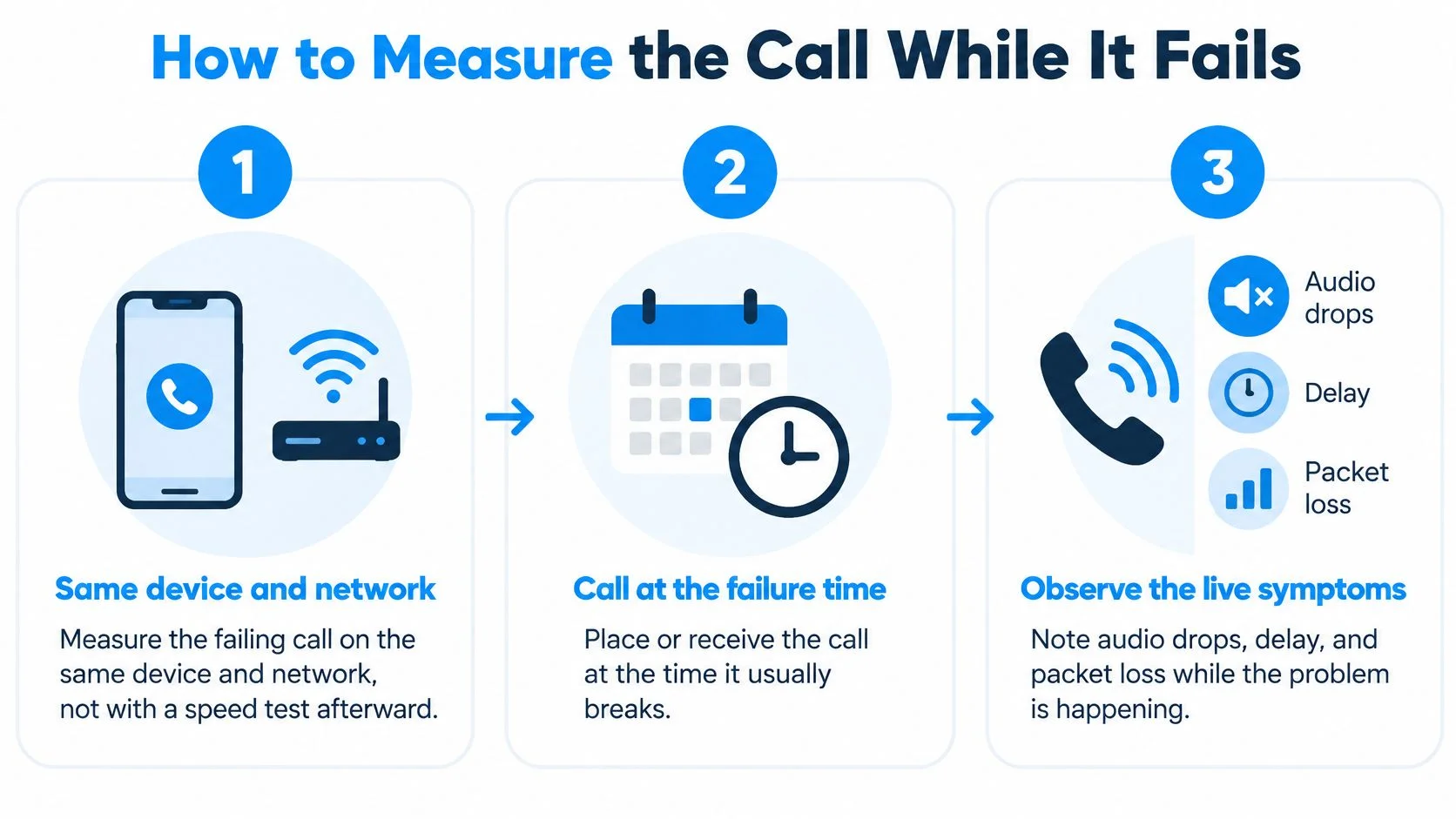
Measure the failing call on the same device, browser, and network where it breaks. A clean speed test after you hang up is a different test, taken under different conditions. You want the trace from the exact moment the audio dropped, stretched, or turned robotic, with the same apps and the same wireless conditions running.
Capture a one-minute trace
- Reproduce the failure first: Place the call at the time it usually breaks and leave other apps as they were. Don't pause the backup or move rooms before you record the baseline.
- Open live statistics: In Chrome or Edge, open chrome://webrtc-internals during the call. In Firefox or Safari, use the available in-call or WebRTC statistics. Note round-trip time, jitter, packets lost, late packets discarded by the jitter buffer, codec, and ICE candidate type.
- Watch a full minute: Record inbound and outbound loss separately and note when you hear each fault. A single average can hide a short spike that removed several syllables.
- Tag the symptom: Mark clipped syllables, long gaps, robotic audio, or one-way silence against the trace timestamp. The symptom tells you which metric to check first.
- Write a one-line diagnosis: Name the likely cause as delay, burst loss, wireless instability, queueing, or device behavior before you start changing settings.
In Motadata's VoIP monitoring guide, the closed-loop process collects per-call RTP/RTCP and WebRTC statistics including one-way delay, round-trip time, jitter, packet-loss fraction, late-packet discards, codec, and estimated Mean Opinion Score; it recommends investigating paths exceeding approximately 150 ms one-way delay, 20-30 ms jitter, or 0.5-1% packet loss, with warnings near 20 ms jitter, 100 ms one-way delay, and 0.5% loss and critical alerts around 50 ms, 150 ms, and 1%.
Read the numbers in context
One-way delay sits inside the round-trip figure. On a roughly symmetric path, a 300 ms round trip suggests about 150 ms each way, but uploads and downloads don't always behave the same. If you sound fine to the other person while they sound broken to you, compare inbound and outbound figures before blaming your microphone.
Late-packet discards matter even when network loss looks low. A packet that reaches the jitter buffer after its playback moment is effectively missing from the conversation. Expanding the buffer may rescue more packets, but it does so by adding delay, so watch whether smoother audio comes with slower turn-taking.
Run the BubblyPhone VoIP speed test before a live call to get a baseline, then compare that baseline with the trace from the failing call. A single clean test is a snapshot, the same limitation that how website monitoring works addresses by checking a service while it is running.
If the trace is clean while the audio is bad, look at the endpoint, microphone, speaker, or browser behavior. Don't keep buying network fixes for a device fault.
Log each failure with the timestamp, the symptom, and the metric that moved. One bad minute is a data point; three logs showing the same spike at the same hour are a lead. That pattern is what tells you whether to chase the access path, the destination route, or the device.
How to Keep Voice Ahead of Other Traffic
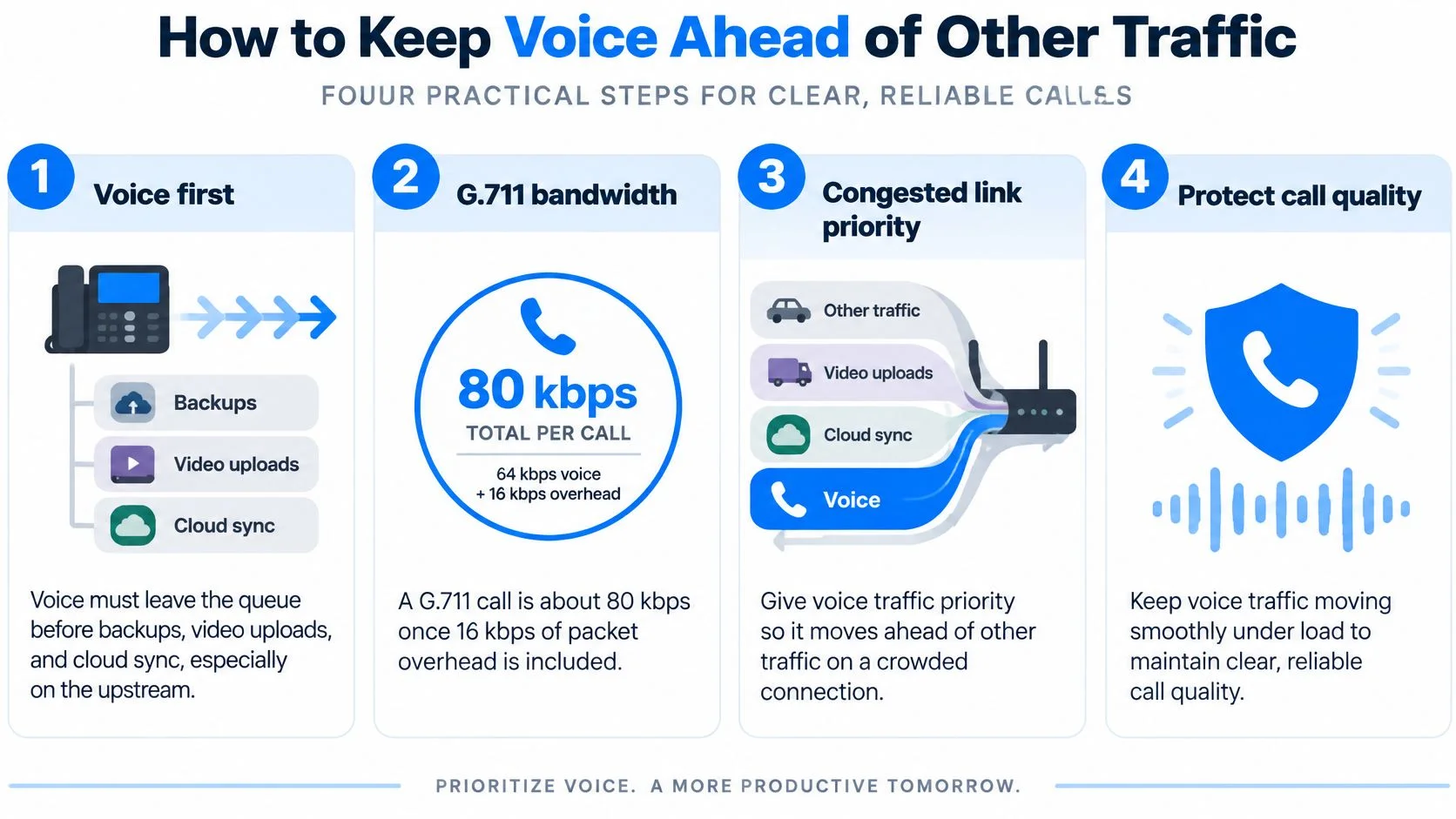
A 100 Mbps line still produces garbled calls when a voice packet queues behind a cloud backup. Priority decides whether the call survives a busy link, and raw capacity does not. Voice uses well under 100 kbps and cannot absorb waiting behind traffic that has no deadline. The upstream is usually the smaller pipe, which is why one large upload can occupy most of it while downloads look healthy.
Cisco's voice QoS troubleshooting guidance does the arithmetic in one place: an 80 kbps G.711 call is a 64 kbps audio payload plus 16 kbps of packet overhead, so a 64 kbps link has to discard at least 20 percent of it, and the same guidance puts G.729 tolerance for packet loss far below 1 percent, with VoIP working best at no loss at all. That 20 percent figure is the useful part. It shows why a connection can pass a speed test and still fail a call.

Fix the queue before you upgrade the plan
- Pause bulk transfers. Stop backups, game downloads, cloud sync and video uploads for the call. Cheapest test, clearest result.
- Shorten the wireless hop. Use Ethernet where you can. Otherwise sit near the access point and hold a stable 5 GHz or 6 GHz connection instead of a weak signal from another room.
- Enable SQM or QoS. Put realtime traffic in a low-latency queue and reserve enough capacity for the calls you place. Test the setting under load, since an idle network proves nothing.
- Remove detours. A VPN exit that carries media through another country lengthens the path and can strip your priority marking along the way.
- Retest at the busy hour. Repeat the call when the household or office is active. A rule that holds at midnight hasn't been tested.
Browser calls negotiate a codec that adapts bitrate, and adaptation does not drain a full queue. When a large upload fills the buffer ahead of voice, packets wait, arrive unevenly, or get dropped, and a burst of drops inside a few hundred milliseconds disappears into an averaged loss figure that looks acceptable. Lowering the audio bitrate cannot restore timing the queue has already destroyed.
Understand the limits of DSCP
DSCP EF (46) is the standard marking for expedited voice. It works only when every device on the path honors it, and a home router can apply its local queue correctly while a VPN, switch, or access provider rewrites or ignores the marking a hop later. Treat DSCP as one component of a local policy that ends at your router's WAN port.
For a worked home-office example of router priority settings, this guide to smoother video calls for Edmonton home offices applies the same order of operations: classify the traffic, cap the queue, then measure again under load.
QoS reallocates a link you already have. Reserve too much and other traffic starves; reserve too little and voice still queues behind it. Judge loss, jitter and delay together during the call, because a policy that cuts loss while pushing one-way delay past the clear-call target leaves the conversation feeling late.
Codecs Browsers Headsets and NAT Paths
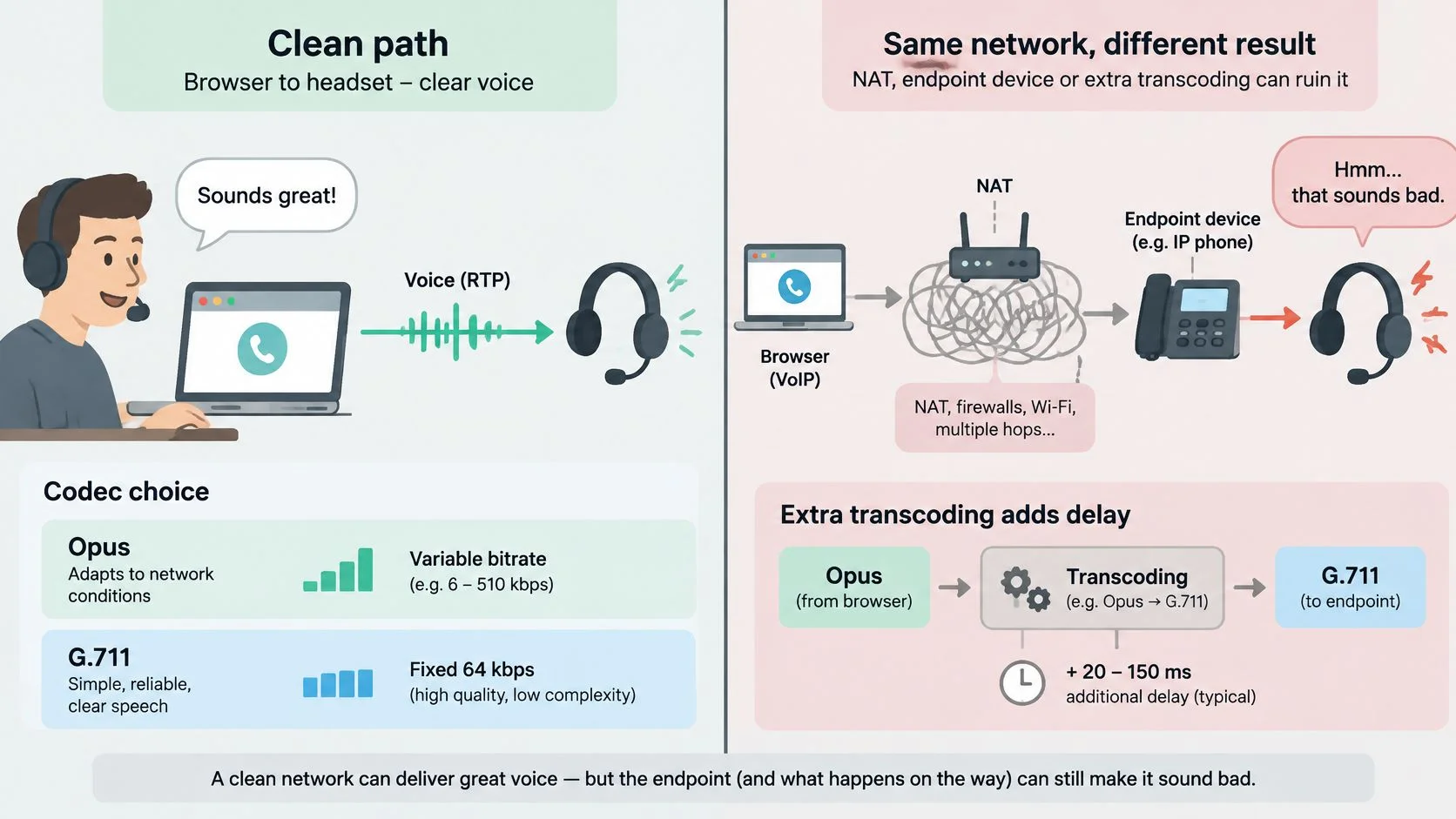
The endpoint can ruin an otherwise clean network, so check codec behavior, browser state, audio hardware, and the NAT path before you blame the connection again. These faults often follow one device while another device on the same Wi-Fi sounds fine.
The comparison below contrasts a direct browser call with a call forced through a more complicated path.

Codec choice matters but you usually don't choose it
Stay on one suitable codec and avoid unnecessary transcoding, because converting audio from one format to another adds processing delay. Opus is the usual WebRTC default because it adapts bitrate to conditions. G.711 can sound clear, but it's heavier and leaves less room on a tight link.
A 2024 assessment of voice quality and QoS in real VoIP calls documented 64 calls and found that the best measured result among the tested codecs was obtained with iLBC-13.33. Treat that result as evidence that codec selection is a real lever, not as a setting you're expected to flip. Browser WebRTC calls usually negotiate Opus automatically, and most callers can't select the codec. A resilient codec also can't repair a congested path.
Browser and headset checks
Keep the calling tab in the foreground, allow microphone access, and close tabs or apps that may be holding the microphone. If quality changes when you switch tabs, lock the screen, or plug in power, the browser or operating system is part of the fault. Try a second browser only after you've captured the original trace, so you know what changed.
A headset microphone usually beats a laptop microphone across a kitchen or open office. It keeps your voice consistent when you turn your head and reduces the chance of speaker audio feeding back into the mic. If there's no sound at all from the laptop, separate that hardware or output fault from call quality and check why laptop speakers stopped working before changing network settings.
You can also verify the input separately with the BubblyPhone microphone test. A mic that clips, cuts out, or picks up mostly room noise will sound bad even when packets arrive perfectly.
The short video below is useful as a visual reset before you inspect the media path.
When the call connects but one side hears silence
Read the ICE candidate in the WebRTC statistics. With a normal home router, STUN helps the browser learn a public address so media can take a direct path. When a firewall or strict NAT blocks that path, TURN relays the media through a server.
A relay is better than no audio, but a distant relay adds delay. Guest Wi-Fi, a restrictive workplace network, or a VPN that blocks UDP can force a relay or prevent audio altogether. I would turn the VPN off and try another network before opening ports or rewriting firewall rules. If the call becomes direct and the numbers improve, you've found the cause without a corporate firewall project.
Recheck the same statistics after each endpoint change. You're not looking for a vague feeling that it's better. You want jitter, loss, discards, codec, and candidate type to support what you heard.
Burst Loss and Device Power Problems
A call can show about 1 percent average packet loss and pass a fast speed test while still dropping syllables. The missing packets arrive in a clump. The pattern matters more than the headline percentage. Scattered loss may be concealed well, while several missing packets in a row leave a gap the codec cannot rebuild.
ACM Queue's comparison of random and bursty loss found that bursty loss produces lower speech quality than random loss at the same overall loss rate because consecutive missing packets create audible gaps that concealment cannot repair. That explains the common complaint that the stats look acceptable but the voice still sounds robotic. The average measures the whole call. Your ear reacts to the worst half second.
Match the symptom to the pattern
Call symptoms that averages hide
Look at the one-minute trace and mark the exact seconds when speech breaks. If packet loss jumps in short spikes while the call average stays modest, you have bursts. Wi-Fi interference, roaming between access points, bufferbloat, and a sudden upload can all create that shape. The remedy depends on which event lines up with the spike.
Power saving can look like a network fault
Phones and laptops protect battery life by suspending background work and reducing radio activity. Power saving suits a parked tab and harms a live call. If audio becomes choppy when the screen locks, the lid closes, or the calling tab loses focus, keep the tab visible and turn off battery optimization for that browser during the call.
Test the theory directly. Place one call with the tab in the foreground and the device plugged in, then compare the trace with your normal setup. If jitter and discards fall only in the foreground test, change how the device treats the browser instead of replacing the router.
Do not chase the average: Record inbound and outbound loss over time and separate isolated missing packets from consecutive-loss events. They sound different and they point to different fixes.
A VPN-only delay sits in the tunnel route, echo sits in the room and the speaker-to-mic loop, and clean loss with a long overseas delay reflects geography. Treat each as an endpoint or path issue before touching the codec. Concealment estimates missing audio and fails when gaps run together. Use it to survive isolated packets; do not treat it as a substitute for fixing bursts. Retest one change at a time and keep the trace that shows the burst, suspension, or echo pattern disappearing.
Confirm the Fix with a Browser Test Call
Prove the repair with a two-minute call at the same hour the problem used to appear. Don't declare success because a quiet test call felt better. Put the same device on the same network, reproduce the normal load, and watch the statistics while you talk.
The before-and-after comparison is the whole point. If the trace now shows continuous audio where it previously broke into short gaps, and no run of consecutive lost packets, stop changing settings. More tweaks after that point often trade one problem for another, and you lose the clean baseline you just earned.
Make the confirmation call count
- Use the original failure conditions: Keep the same room, browser, headset, and time of day for the first confirmation call.
- Compare traces, not impressions: Save the before and after numbers so you can see which metric moved.
- Change the diagnosis if the numbers disagree: Clean local statistics with poor audio point back to the endpoint or destination path, not to more QoS changes.
If you want a structured pre-call check, run the BubblyPhone connection test before the live confirmation. It won't replace stats from the failing hour, but it catches an obvious access problem before you dial.
The confirmation call itself runs through BubblyPhone: you enter any number, check the rate and press call. Audio travels over WebRTC in the browser, and the person you call sees an ordinary phone call with nothing to install on their side, so a test to a landline or mobile exercises the same path a real call takes. Calling is pay as you go with no subscription and per-minute billing rounds up to the whole minute, which keeps a two-minute check cheap. Check the destination on the live BubblyPhone rates page before you dial rather than relying on a quoted figure here.
If the confirmation trace stays poor after a clean local setup, keep the diagnosis narrow. Name whether delay, burst loss, wireless delivery, the relay path, or the device is still failing, then fix that one item and measure again. A test that fails the same way twice under identical conditions is still useful, because it rules out everything you already changed.
When the original fault was intermittent burst loss rather than a steady problem, repeat the test on two separate days before closing it out. One clean call after weeks of bad ones is a coincidence until it holds under the same conditions.